
My WordPress site was compromised with gambling SEO spam. The website looked normal when I opened it, but legitimate ZahraAli.ca pages—including blog posts, the About page, the Refund Policy and archive or tag URLs—had been manipulated behind the scenes.
Google showed gambling titles and descriptions for real pages, and some compromised URLs redirected visitors toward external gambling websites. Search Console exposed the scale through hundreds of unrelated queries.
This guide explains how to identify WordPress gambling spam, what to check before changes, how cPanel and read-only Terminal checks support an investigation, when to restore a backup, and how to handle stale Google results. My case supplies the evidence; the structure follows what another website owner needs to do.
I still do not know the original entry method, so I will not blame a plugin, host, attacker or malware family without proof.
1. How can you tell if your WordPress site has gambling spam?
Do not rely only on the homepage. On my site, the visible website looked normal while legitimate Blog, About, Refund Policy, and archive or tag URLs appeared in Google with gambling titles and descriptions. Some compromised URLs also redirected visitors to external gambling pages.
The warning signs can include:
- Search titles or descriptions that do not match the live page.
- Gambling, pharmaceutical or other unrelated queries in Search Console.
- Unexpected landing pages or indexed URLs.
- Redirects that appear only while logged out, on certain devices or after clicking a search result.
- Sudden traffic spikes from searches unrelated to the business.
- Unknown WordPress users or Search Console owners.
One affected ZahraAli.ca result still displayed a gambling title after the live page had returned to its legitimate content.
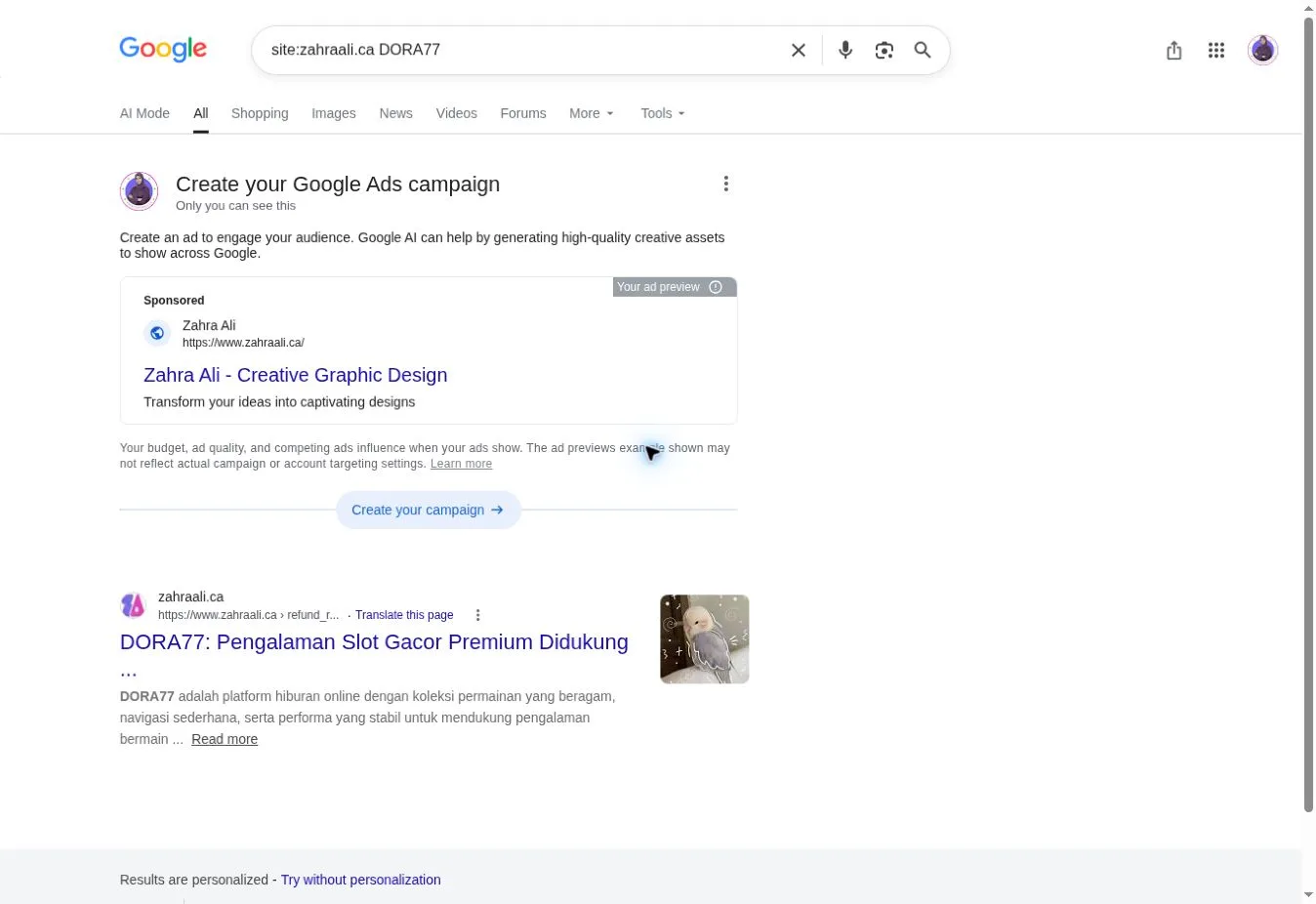
When this screenshot was captured, Google displayed a DORA77 title for a legitimate ZahraAli.ca URL after the live page no longer showed that content. It documents the search-index aftermath of the incident.
On my site, the first clue to the scale was Search Console. The three-month report showed 887 clicks and 13.1K impressions, with two unusual spikes. The Queries report revealed what was behind them.
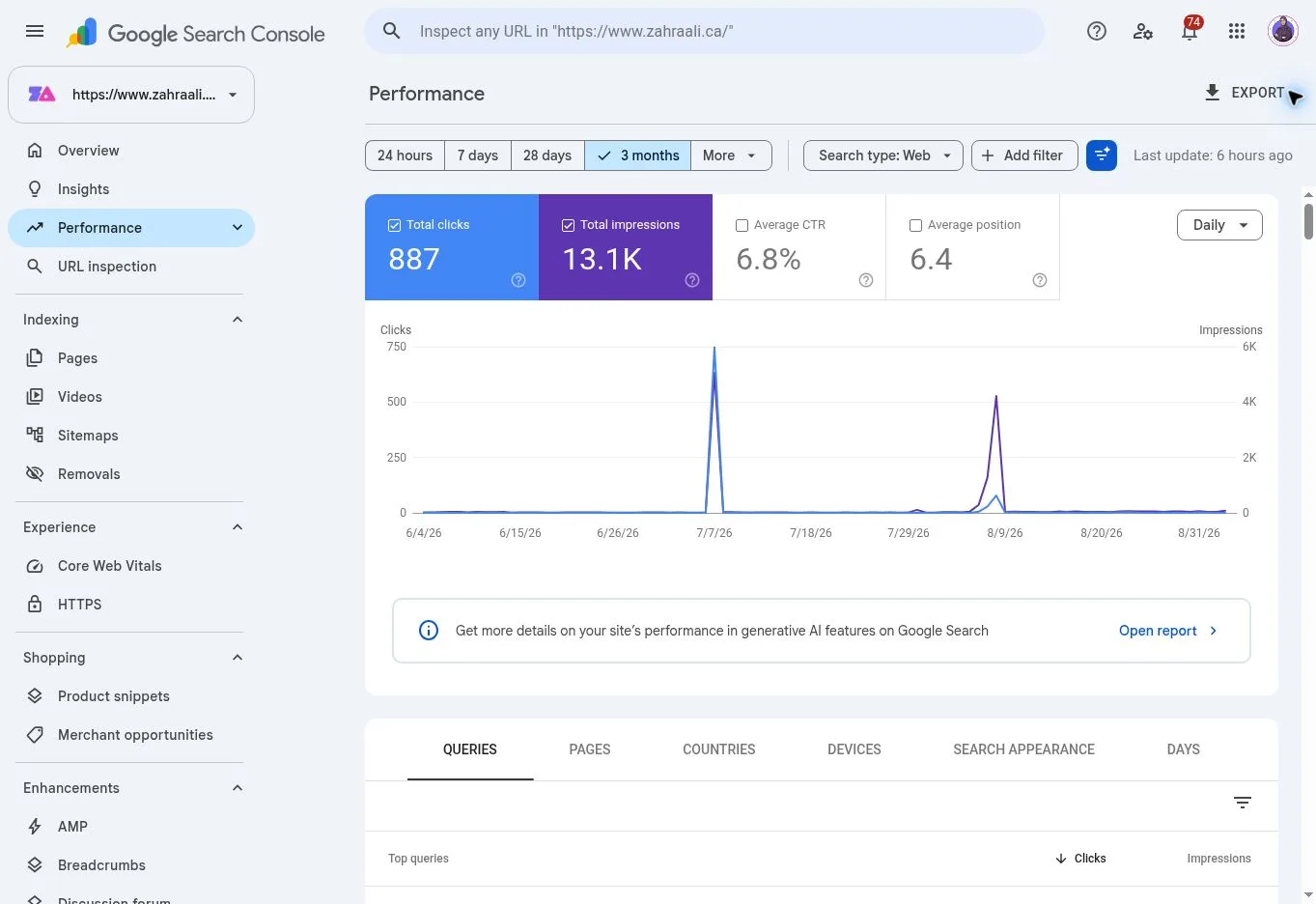
The three-month report showed two unusual traffic spikes that prompted a closer review of the queries.
Four representative query rows showed how far the search manipulation had spread.
| Query | Clicks | Impressions |
|---|---|---|
| hanabi88 | 608 | 1,099 |
| fatcai99 | 126 | 5,686 |
| dora77 | 12 | 1,234 |
| daun77 | 12 | 81 |
Search Console contained hundreds of unrelated queries and variations. I’m showing only a few representative examples because the point is the attack pattern, not the gambling brands themselves.
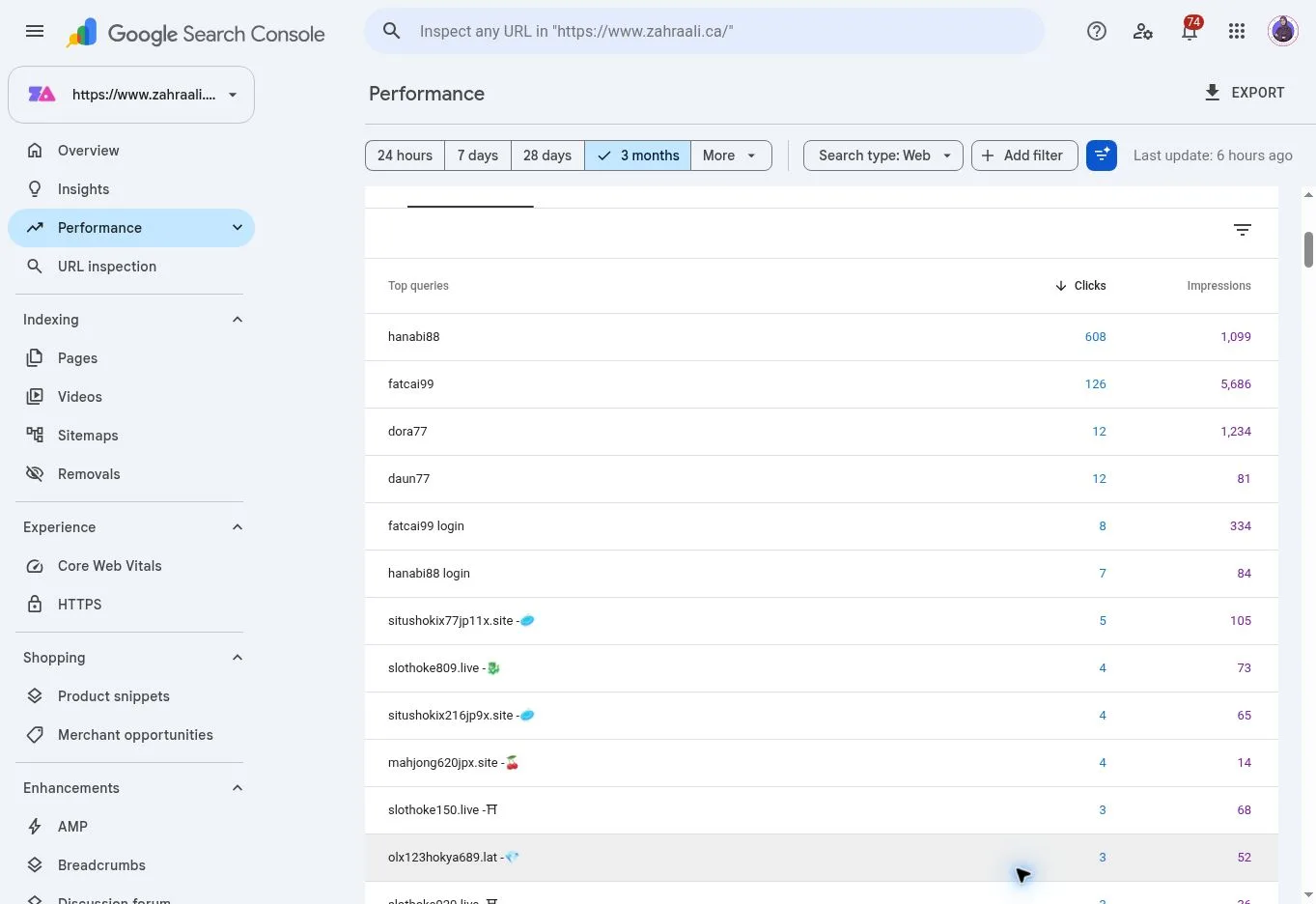
The query report exposed the scale of the incident without making every gambling-keyword variation part of the article.
Not every query was malicious; ZahraAli.ca still had legitimate design and website searches. The compromise was established by manipulated pages, altered search results, external redirects and the unrelated query pattern.
Search spammers may target established websites for their indexed pages, backlinks and search visibility. That does not identify who attacked my site or how access was obtained. Google’s spam policies describe hacked content placed on a site without permission.
2. What should you do before deleting anything?
Preserve the current evidence before trying to clean the site. Save screenshots and exports of affected Google results, Search Console queries and pages, unexpected redirects, user lists, alerts and dates. Record every legitimate URL that shows the wrong title, description, content or destination.
Create a backup of the current files, database and available logs, even if the copy may contain the compromise. It can preserve evidence and provide a rollback point. Ask the host to retain access logs or change records before a restoration overwrites them.
Map each affected URL and test it while logged out. Record whether it loads legitimate content, shows injected content, redirects externally or returns an error. If visitors are being redirected or exposed to harmful content, contact the host or a security specialist immediately and use the least disruptive safe containment option available.
Do not delete an unfamiliar file based only on its name. It may be legitimate custom code, and deleting it can break the website or destroy evidence without removing the real persistence mechanism.
3. What parts of WordPress should you check?
Check beyond posts and pages. Relevant areas include administrators, application passwords, plugins, themes, uploads, must-use plugins, custom snippets, the database, scheduled tasks, server rules and hosting access.
In my case, the confirmed review covered uploads, plugins, must-use plugins, Code Snippets, executable PHP-type files and redirect behaviour. The work also included a WordPress core checksum check and an Imunify360 scan.
Database tables, cron entries and server rules remain general checks for readers; the incident record cannot confirm they were all fully reviewed.
Look for unexplained changes, executable code in media folders, unknown users, suspicious tasks, altered rewrite rules and redirects that behave differently for search visitors. Compare unusual items with the known configuration before removing them.
4. How can cPanel, Terminal and WP-CLI help?
cPanel provides a view outside the WordPress dashboard. It can expose files, timestamps, server tools and configuration that are not visible in the page editor. Terminal and WP-CLI can support a read-only investigation, but they do not replace manual review or a hosting-level scan.
The commands below are the ones verified from my case. None deleted files or changed the website.
Confirm the WordPress directory
cd ~/public_htmlThis changes the Terminal’s working directory.
pwdThis confirms the current path. These navigation commands do not inspect the site.
Verify WordPress core files
wp core verify-checksumsThe saved output was:
Warning: File should not exist: wp-cli.yml
Success: WordPress installation verifies against checksums.
The success message means the official WordPress core files matched the expected checksums. The official WP-CLI documentation explains this command’s scope.
Inspect the extra-file warning
I inspected the warning before deciding what to do.
ls -l --time-style=long-iso wp-cli.ymlThis displays file metadata. Metadata alone cannot classify a file as safe or malicious.
sed -n '1,160p' wp-cli.ymlThe visible content was:
apache_modules: [mod_rewrite]That explains the visible configuration, not the file’s origin or the security of the wider site.
List executable files for review
find wp-content/uploads wp-content/mu-plugins wp-content/plugins wp-content/themes -type f \( -name "*.php" -o -name "*.phtml" -o -name "*.phar" \) -printf '%TY-%Tm-%Td %TH:%TM %10s %p\n' 2>/dev/null | sort -r | head -n 120This read-only command lists executable PHP-type files in key wp-content areas and sorts them by modification time. It does not identify malware automatically, it does not inspect every possible persistence location, and head -n 120 limits the output to 120 results. A qualified person still has to review what belongs on the site.
If you are not comfortable with Terminal, do not experiment on a live site. Ask the host or a WordPress security professional to run and interpret the checks.
5. What if WordPress core passes the checksum test?
In my case, WordPress core passed the checksum test. That was useful evidence, but it did not cover the whole website.
Core verification does not inspect plugins, themes, uploads, database content, WordPress users, cron jobs, server rules, credentials or third-party services. A compromise can exist in any of those areas while every official core file still matches its checksum.
Treat a passing result as one part of the investigation. Combine it with file review, access review, hosting scans, redirect testing and continued monitoring. The separate warning about wp-cli.yml also shows why the complete command output matters: a success line should not make you ignore additional findings.
6. When and how should you restore a backup?
Restore only after preserving the current evidence and confirming what the backup contains. Ask whether it includes files, the database or both, and why it is believed to predate the compromise. Keep a rollback plan in case the restoration introduces another problem.
In my case, I restored a backup created before I discovered the compromise, then continued scanning and checking the recovered site rather than assuming the backup was automatically clean.
The exact restoration completion time and restore scope were not preserved. WordPress provides official backup guidance for planning recoverable copies.
7. Which passwords and access permissions should you review?
I restored from a backup and changed the relevant passwords. The incident record does not identify the exact credential categories changed.
For another site, review every system that can control WordPress or recover an account: WordPress administrators, application passwords, hosting and cPanel users, SFTP or SSH, database users, the domain registrar, CDN, connected email accounts, analytics and Search Console.
Remove users or owners you do not recognize. Use unique passwords and enable two-factor authentication wherever it is supported. If credentials were changed before cleanup, rotate them again from a trusted device after the recovered environment has been checked. WordPress’s hacked-site guidance places password changes within a wider recovery process.
8. What can Imunify360 and other scans tell you?
My hosting-level checks included an Imunify360 scan, file-area review, redirect testing and the WordPress core verification described above. The completed checks found no evidence of an active compromise at the time of review.
That conclusion is not a guarantee. A clean scan can miss new, obfuscated, inactive or unsupported code. A checksum covers only the files within its stated scope. A file listing surfaces items for review but cannot understand their purpose.
Use several independent signals and preserve the scan output when possible. These results did not identify an attacker, entry method, vulnerable component, malware family or data breach.
9. How should you review Search Console ownership and reports?
Open Search Console settings and inspect the owners and users. Remove access you do not recognize, then check Security Issues and Manual Actions. These reports show what Google currently detects; they do not replace a website investigation.
In my case, the ownership screen showed only Zahra Ali as the verified owner.
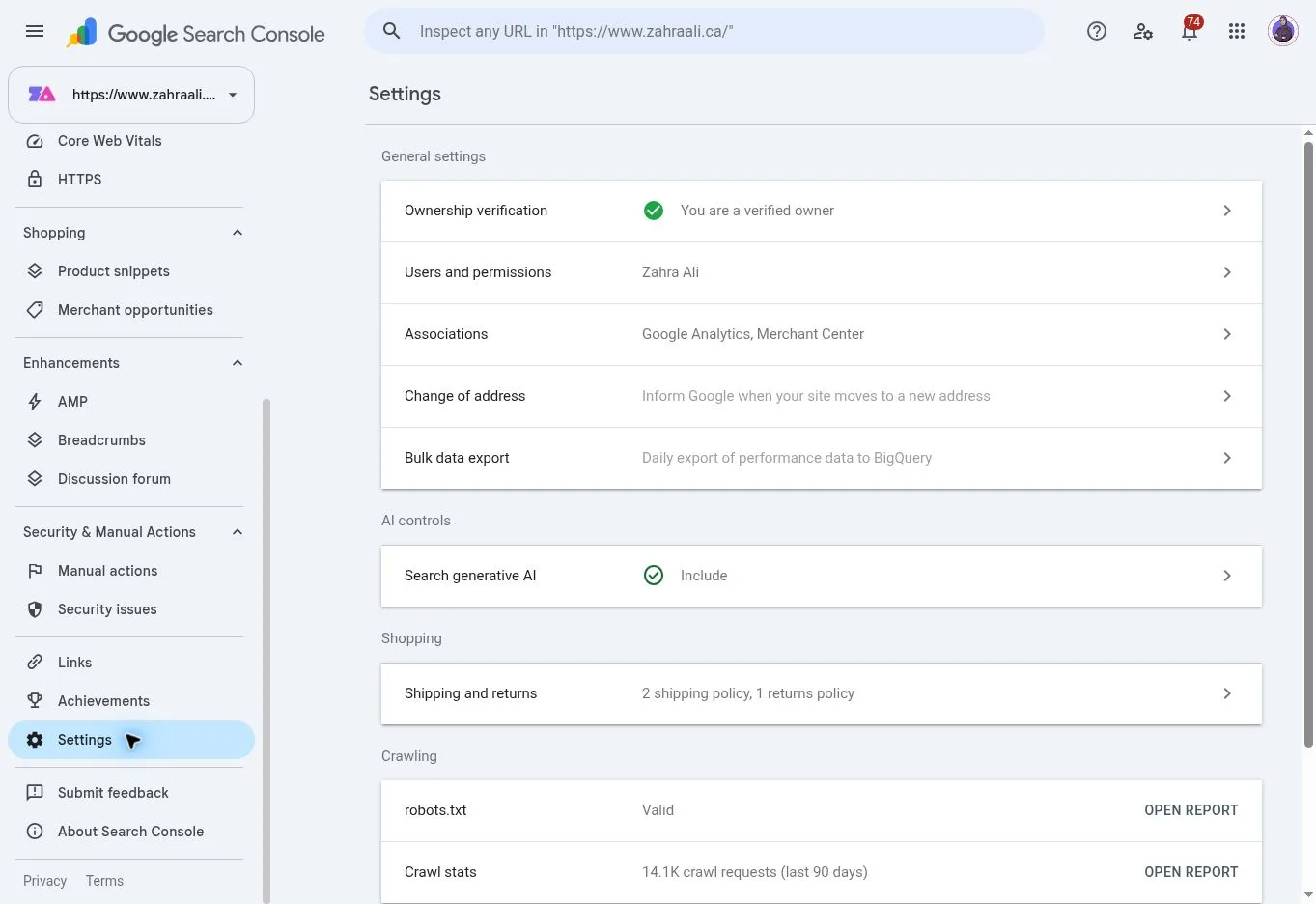
The property settings showed Zahra Ali as the verified owner after access was reviewed. Private account details should be cropped before publication.
The Security Issues report showed no issues detected.
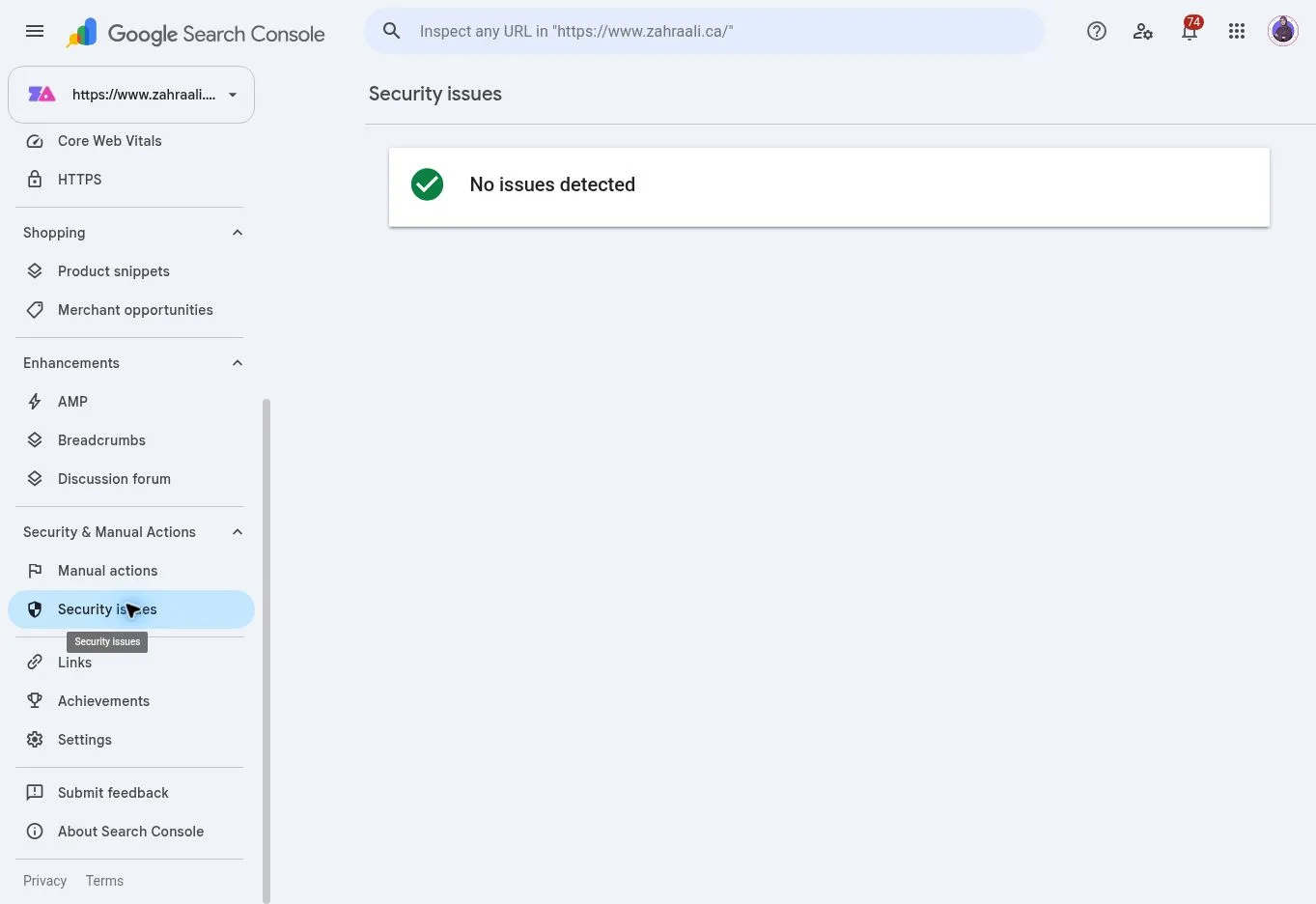
The current Security Issues report showed no detected issues. This status does not guarantee that the whole website is secure.
The Manual Actions report also showed no issues detected.
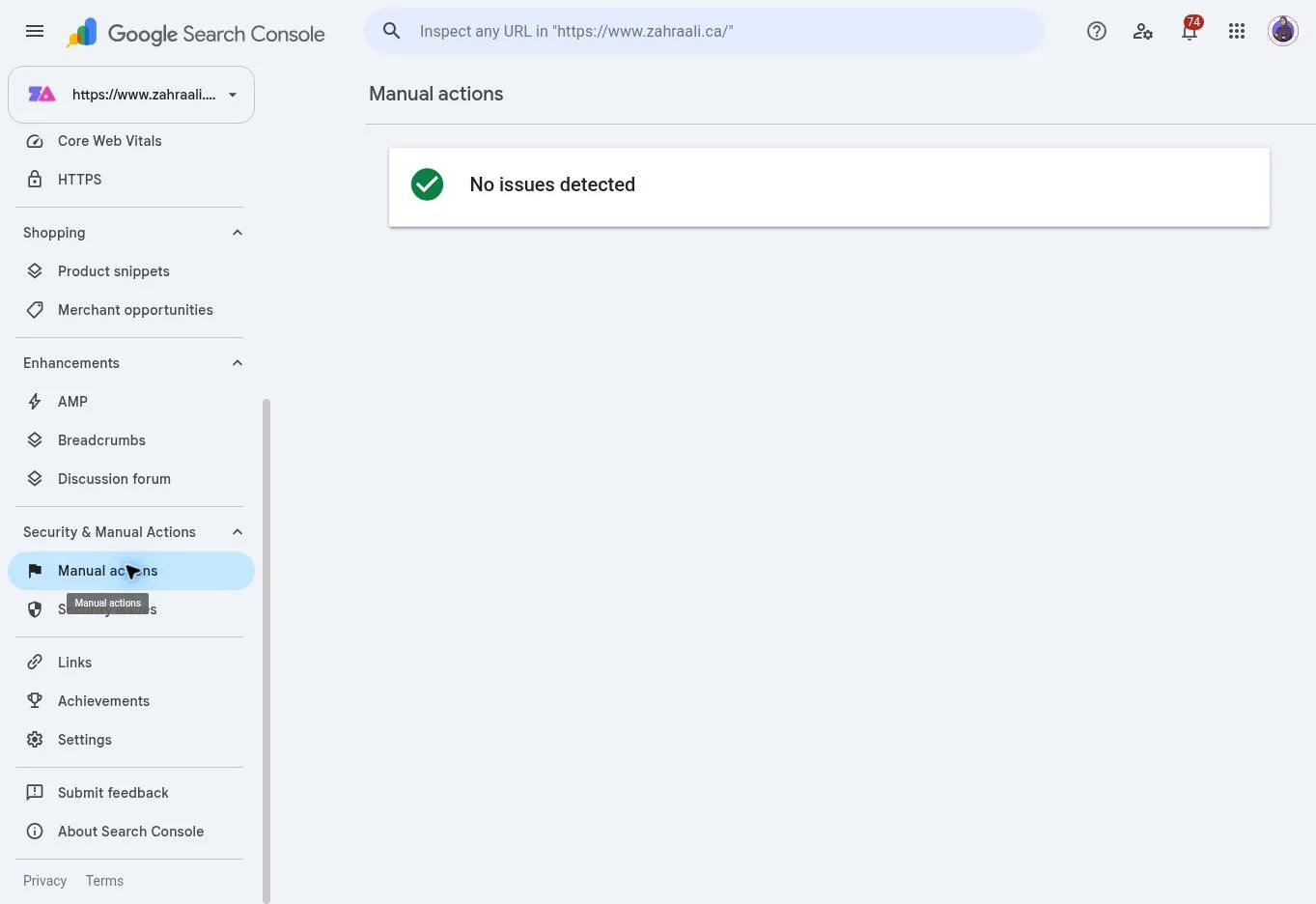
The current Manual Actions report showed no action against the property. It does not explain the original entry method or every stale result.
Google’s Security Issues guidance explains how to review detected hacked content. A clear report is reassuring, but it cannot confirm the site’s history or refresh every affected result.
10. How do you clean gambling spam from Google afterward?
Fix and verify the website before treating the search index. A stale gambling title can remain after the live page has been restored because Google still needs to recrawl and reprocess it.
A current Google search still shows a stale BIGWINNER listing for /blog/ and a stale DORA77 listing for /refund_returns/. The live Blog page serves legitimate ZahraAli.ca content, while /refund_returns/ returns 404 Not Found. The listings have not all disappeared and remain under monitoring.
Handle URLs according to what they are:
- Legitimate URL with a stale title: Keep the correct page live. Verify its title, content, canonical and internal links, then request recrawling or indexing when appropriate.
- Spam-only URL that should not exist: Remove the injected content and return an appropriate
404 Not Foundor410 Goneresponse. - Compromised URL that redirects externally: Remove the unauthorized redirect, test the URL logged out and confirm the correct final destination before asking Google to refresh it.
Search Console’s Removals tool can temporarily hide an urgent result, but it does not remove malware or permanently delete a URL. Google’s Removals documentation explains that limit.
My incident record does not show every Google cleanup action used. Sitemap submission, individual indexing requests and temporary removals are therefore reader guidance rather than a record of my completed steps.
11. How do you protect the site after recovery?
Recovery is not complete when the homepage looks normal. Update WordPress and trusted plugins or themes once the recovered site is stable. Remove unused components only after confirming they are unnecessary, and do not remove custom code simply because it is custom.
Use unique credentials, two-factor authentication where available and tested backups with a documented restore process. Record who has access to WordPress, hosting, the domain, email recovery accounts and Search Console.
Monitor Search Console queries and pages, user accounts, redirects, file changes and security scans for several weeks. Save dates and results so a new signal can be compared with the recovery baseline. If the host provides logs, preserve them before routine retention or restoration removes useful evidence.
12. Exact WordPress gambling spam recovery checklist
- Save the evidence. Export Search Console Queries and Pages, capture Google results and record affected URLs, redirects, dates, alerts and users.
- Protect visitors. Contact the host immediately if the site redirects people or serves harmful content.
- Back up the current state. Preserve files, the database and available logs before cleanup or restoration.
- Map the affected URLs. Test legitimate pages and suspicious paths while logged out, and record the content, status and destination.
- Review access. Remove unknown users or owners, rotate relevant credentials from a trusted device and enable two-factor authentication where available.
- Confirm the backup scope. Know whether it includes files, the database or both before restoring it through a controlled process.
- Inspect beyond WordPress core. Review plugins, themes, uploads, must-use plugins, snippets, users, database content, cron jobs, server rules and redirects as appropriate.
- Use checksums and scans carefully. Treat each result as evidence within its stated scope, not complete clearance for the entire site.
- Update the recovered site. Update trusted components after stability is confirmed and remove only components verified as unnecessary.
- Clear caches and retest. Check logged-out, mobile, desktop and search-click behaviour across WordPress, server, CDN and browser caches.
- Repair Google results. Keep legitimate URLs live, return
404or410for spam-only URLs, request recrawling when appropriate and use temporary removals only when necessary. - Monitor and document. Watch queries, indexed pages, access, redirects, file changes and scans for recurrence.
The live site now serves legitimate content, the current checks found no evidence of an active compromise, and Search Console shows no Security Issues or Manual Actions. Some stale Google spam listings remain visible in certain searches, so they are being monitored while Google updates its index.
If this happens to your site, preserve the evidence, protect visitors, review files and access, and separate website recovery from Google-index cleanup. Do not run unfamiliar commands or delete files without a backup and recovery path; involve your host or a qualified WordPress security professional when the cause is unclear. For more warning signs, read Nearly 2,000 Hacked WordPress Sites: 8 Checks for Owners, or see my website management services and contact page.