

I like a useful prompt, but I don’t want to explain the same process to Claude every time. Whether I’m reviewing a website, checking claims in an article or editing a design brief, there are steps I want it to follow before I can trust the result. A Skill keeps those steps in one place.
I put together ten small Skills for the work I return to most: research, SEO, UX, accessibility, design systems, brand reviews, writing and product requirements. They’re plain Markdown instructions, with no scripts or dependencies to install.
Download the free Claude Skills pack
10 Claude Skills, ready to install
Reusable workflows for research, SEO, UX, accessibility, writing and more.
10 individual Skills + README ZIP file
Extract the pack, then upload one individual ZIP from the ready_to_upload folder to Claude. The combined download is not itself a Skill.
How a Claude Skill is different from a prompt
A prompt addresses one request. A Skill contains instructions Claude can reuse for a particular kind of work. Each ZIP has a folder with a SKILL.md file: its name and description help Claude identify when to use it, while the rest sets out the steps and expected result. A Skill does not give Claude browsing or other tool access on its own.
How to install a downloaded Skill in Claude
- Extract
zahraali-10-claude-skills-starter-pack.zipon your computer. - Open Claude, then enable Create and edit files (also called Code execution and file creation) in Settings > Capabilities if needed.
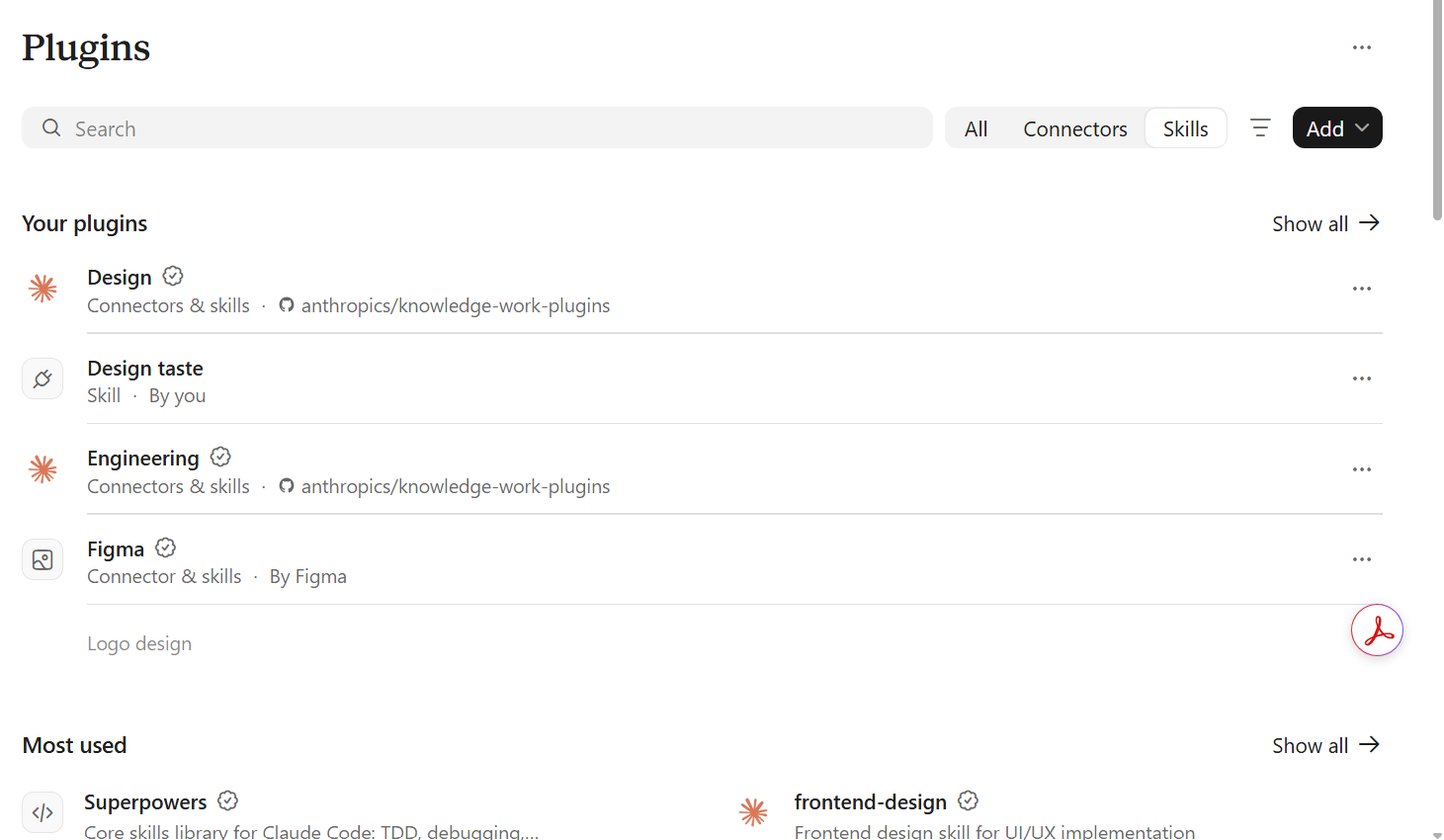
- Go to Plugins > Skills. Click the black Add dropdown, then choose the option for uploading or creating a custom Skill (the exact wording may vary).
- Choose one individual ZIP from the extracted
ready_to_uploadfolder, such aswebsite-ux-review.zip. - Enable the Skill and give Claude a task that matches its description. Review the output and adjust the instructions for your own work.
The ten Skills included in the download
1. Research fact-checker
It pulls important claims from a draft, checks the sources and dates behind them, and produces a list showing what is supported and what still needs evidence.
Try: “Check the statistics in this article against the sources linked below, and flag anything that still needs evidence.”
2. SEO content brief
It turns a topic into a brief covering the reader’s question, a proposed article structure, sources to consult and internal links from existing pages.
Try: “Prepare an SEO brief for an article about accessible website forms, using these existing pages for context.”
3. Website UX review
It follows a user through a website task and examines forms, data sources, status changes, error messages and mobile behavior to find where the flow breaks down.
Try: “Review this booking flow and explain what happens when a customer changes their appointment.”
4. Accessibility review
It examines headings, labels, keyboard access, focus, contrast, tables and mobile reflow, then organizes the findings into issues to investigate or fix.
Try: “Check these mobile screenshots for reading order, clipped content and accessible controls.”
5. Design system quality check
It checks components against the supplied design tokens, reviews their variants and states, and flags layout or responsive inconsistencies.
Try: “Audit these card components against the spacing, type and color variables supplied in this design file.”
6. Brand consistency check
It compares visuals with a supplied brand guide, checking logo use, typography, colors and tone, and identifies specific differences.
Try: “Review these campaign graphics using our attached brand guide. Don’t redraw the logo.”
7. Natural copy editor
It edits awkward or repetitive passages while keeping the writer’s specific examples, technical detail and natural paragraph flow.
Try: “Make this article sound natural without shortening the technical explanation or adding claims.”
8. Competitor evidence matrix
It arranges product information by use case, source date, features and limitations, making practical differences easier to compare.
Try: “Compare these three tools for a small design team using their current official documentation.”
9. Content repurposing workflow
It adapts an approved article for LinkedIn, email and shorter social posts, retaining the original claims, attribution and links.
Try: “Create a LinkedIn post and newsletter excerpt from this approved article, keeping the link and evidence.”
10. Technical requirements review
It maps a feature’s user roles, inputs, permissions, status changes and acceptance criteria before design or development starts.
Try: “Write testable requirements for a configurable staff-management feature, including where dropdown options come from.”
Which Skill should you install first?
Pick the Skill that matches your next task and try it with a real example. You can add the others when you need them.
What I checked, and what I haven’t
I checked the ZIP structure, the required SKILL.md files and their descriptions, and confirmed that the pack contains Markdown instructions rather than executable scripts. I have not installed and tested these Skills across Claude plans or verified that Claude will select each Skill reliably. Try them with a few normal tasks in your own account before relying on them.
Read the instructions before installing any Skill, especially one from an unfamiliar source. Handle private information carefully, and review factual claims and finished work yourself.
About these files and further reading
I wrote these ten Skills for ZahraAli.ca. Each includes an editable SKILL.md file; these are independent examples, not official Anthropic Skills. For the file format, see Anthropic’s custom Skill authoring guide. Its installation guide and Plugins update explain the Claude controls. You can also browse Anthropic’s example Skills to compare approaches.
Related reading: Claude vs. ChatGPT: Where Claude Performs Better in 2026 and Can AI Agents Actually Use Your Website?.